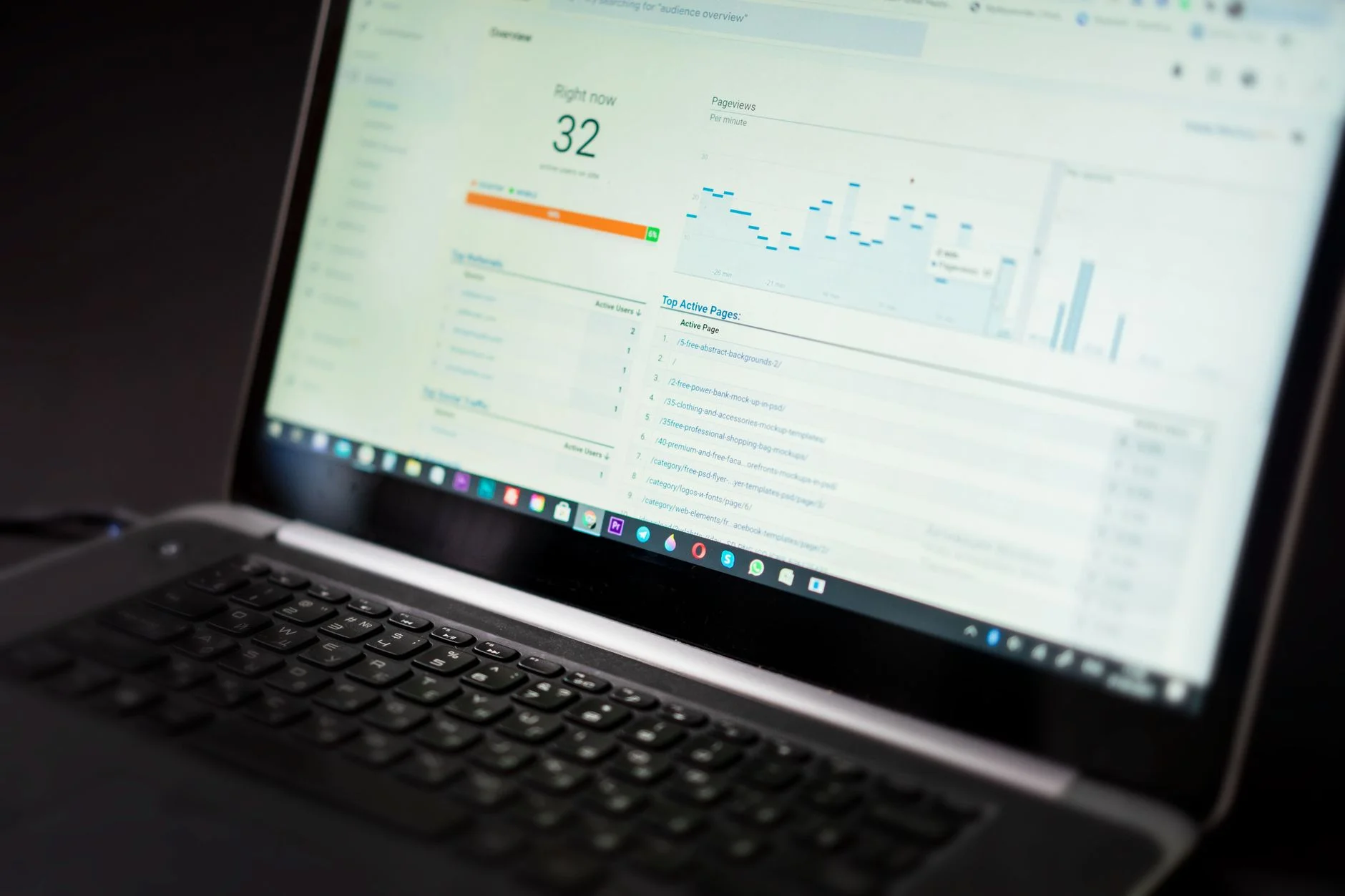
How to Set Up Google Search Console for Your Shopify Store
Google Search Console is the most important free SEO tool for Shopify merchants. Here is exactly how to connect it, verify your store, and start reading the data that matters.


Your Shopify Google Search Console setup is not optional if you take Shopify SEO seriously. It is the only tool that shows how Google really sees your store. You learn which pages are indexed. You see which queries bring up your listings. You spot which pages have errors. You watch how your rankings move over time. Every other SEO tool only guesses at this data from outside crawls. Search Console reports it straight from Google.
Here is the good news. It is free. Connecting it to a Shopify store takes about 10 minutes once you know the right method. Below is the full setup process. You will also see the most common trap merchants hit during verification. And you will learn the reports to check first.
How do I connect Google Search Console to my Shopify store?
The fastest verified method for Shopify is domain verification. You can do it through Google Tag Manager or the DNS TXT record method. Shopify does not let you edit your site's HTML head. So the HTML file upload method does not work. Use one of these two ways instead.
DNS TXT record (recommended): go to the DNS settings at your domain registrar. Add the TXT record that Google gives you in Search Console. It survives theme changes and app installs. It is the most stable way to verify a Shopify store.
Google Tag Manager: do you already have GTM on your store? Then verify with the GTM container ID in Search Console. It works right away once GTM is set up and live.
Shopify admin: go to Shopify Admin > Online Store > Preferences. Paste your Google Analytics measurement ID if you use GA4. Shopify works with Google. So Search Console sometimes verifies on its own. That happens when one Google account owns both the Analytics property and the Search Console one.
Do NOT use the HTML file upload method. Shopify does not allow loose files in the webroot, so this verification fails.
What should I submit to Google Search Console after verification?
Submit your Shopify sitemap as soon as you verify your property. Every Shopify store builds a sitemap on its own at yourdomain.com/sitemap.xml. This file lists all your product pages, collection pages, blog posts, and standard pages. Submitting it tells Google just what to crawl. That speeds up indexing a lot. Waiting for Googlebot to find pages on its own is much slower.
Go to Search Console > Sitemaps > enter "sitemap.xml" > Submit.
Shopify's sitemap is nested. The root sitemap.xml links to separate index files for products, collections, blogs, and pages. All of them get submitted when you submit the root file.
Check the sitemap status 24-48 hours later. It should show "Success" with a count of URLs found. Does it show errors instead? Then open the linked sitemap file in a browser. That helps you spot what Google could not read.
Which Search Console reports matter most for Shopify SEO?
Three reports give you the most useful Shopify SEO insight in month one. They are the Performance report, the Coverage (Index) report, and the Core Web Vitals report. Each one answers a key question about how your store does in search.
Performance report: it shows clicks, impressions, average position, and CTR. You get it by query and by page. Filter by page to see which product and collection pages show up in search. You also spot pages with impressions but low CTR. That is a sign to rewrite the title tag or meta description.
Coverage report: it shows which pages are indexed, which are left out, and why. The tab that matters most is "Excluded." Look for product or collection pages listed there. Two labels to watch: "Excluded by noindex tag" and "Duplicate, Google chose different canonical than user." These point to indexing problems. They hold back rankings no matter how good the page is.
Core Web Vitals report: it shows your store's LCP (Largest Contentful Paint), CLS (Cumulative Layout Shift), and INP (Interaction to Next Paint) scores. You see them for mobile and desktop. URLs marked "Poor" can get a ranking demotion. Fix these first, before you work on off-page tactics.
Check the Coverage report first in your first 30 days. It tells you right away if Google is blocked from indexing the pages you need to rank. That problem makes every other SEO effort pointless until you fix it.
What are common Search Console errors specific to Shopify stores?
Shopify stores share a set of Search Console issues that come up again and again. Here are the most common ones. First: "Duplicate, Google chose different canonical than user" on product pages. Shopify's two-URL structure causes this. See the technical SEO checklist for Shopify stores. Second: "Crawled - currently not indexed" on new collection pages. These need more content or more internal links to get indexed. Third: "Page with redirect" errors. Those come from old product handles that were renamed with no 301 redirect.
Use the URL Inspection tool to test one page at a time. Just enter any URL in the search bar at the top of Search Console. It shows what Google last crawled. It tells you if the page is indexed. It flags canonical conflicts and mobile issues. This is the best tool for finding out why a page is not ranking. Keep reading: why your Shopify store isn't showing up in Google · how much does SEO cost for a small business.
How long does it take for Search Console data to appear after setup?
The Performance report shows data from the day Google first crawled your domain. That often goes back weeks before you set up Search Console, if your store was already live. Coverage data shows up within 1-3 days of submitting your sitemap. Core Web Vitals data needs at least 28 days of real user measurements to build a report. New stores will see "Not enough data" until they gather enough traffic.
Do I need a separate Search Console property for my Shopify subdomain?
Does your store use a custom domain (yourbrand.com)? Then set up a Domain property in Search Console. It covers all subdomains and protocols in one place. That means www, non-www, HTTP, and HTTPS. Are you still on a Shopify myshopify.com subdomain? Then set up a URL-prefix property for that exact URL. Domain properties need DNS verification. URL-prefix properties let you verify in several ways. Most live stores with a custom domain should pick the Domain type.
Sources
Google Search Central - Search Console setup and verification documentation. developers.google.com/search
Shopify Help Center - connecting Google Search Console to Shopify. help.shopify.com
Ahrefs - Google Search Console guide for e-commerce stores. ahrefs.com
Want an expert to review what your Search Console data is actually telling you about your Shopify store's SEO? Get a free Brand & Tech Assessment with TTGC.
Book a free Brand and Tech Assessment to see exactly how we would grow your organic visibility.
Build It With Through The Glass Creatives
Reading about it is one thing. Having the right team do it is another. Through The Glass Creatives brings together brand strategy, growth marketing, and AI and development engineering. Most providers cannot offer all three. That mix is what makes TTGC a strong partner. We can bring this to life for you. Get a free assessment and let us talk about your project.